Monsel Studio
One place your team and your agents both read from.
Give Studio your handbooks, supplier contracts, call recordings and website pages. Your agents work from them. Your team can ask questions and see which document the answer came from.
Monsel Studio
Give Studio your handbooks, supplier contracts, call recordings and website pages. Your agents work from them. Your team can ask questions and see which document the answer came from.
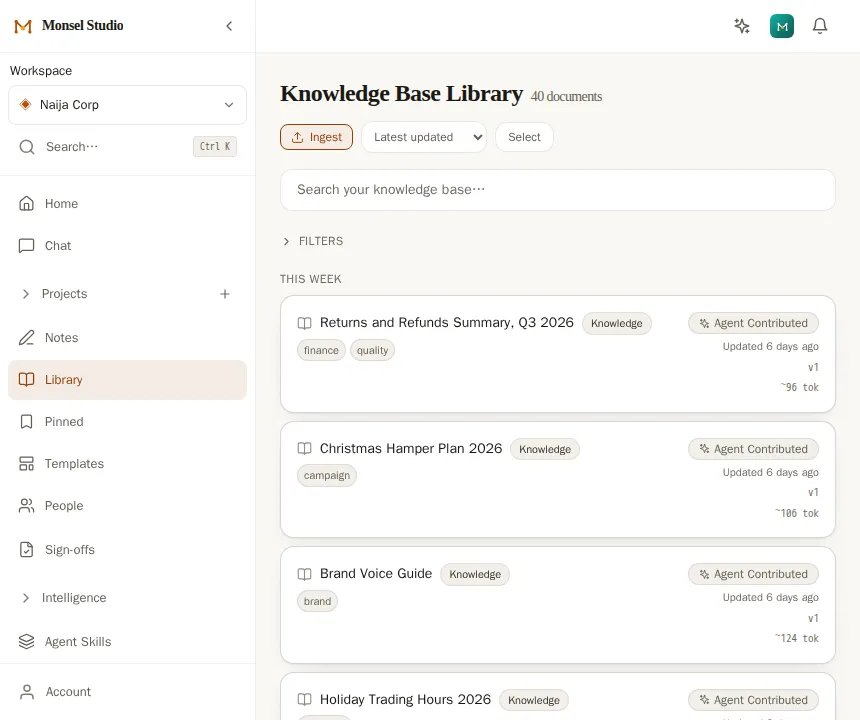
Getting documents in
Studio reads what you give it and splits long files into sections you can find on their own. Switch on AI enrichment for your workspace and Studio also uses AI, once per document, to label it, link it to related documents and pick out the people and companies in it. It uses some of your AI credits. Without it, documents are still stored, split and searchable.
Drop files, paste text, give it a web address, or connect a Google Drive folder that stays in step. Recordings are typed up first, so a supplier call becomes text you can search.
With AI enrichment on, each document gets labels as it arrives. A label nobody has used before waits for your approval.
With AI enrichment on, a refund policy is linked to the courier agreement behind it.
Dropbox and OneDrive are coming.
Chat and search
Chat answers in plain words and lists the documents it used. Search finds documents by meaning, so a question worded the way a customer would put it can find the policy.
How an answer is found
It quotes only what it needs.
Co-work
Open a document and invite an agent into a panel next to it. Ask it to rewrite a section, summarise for the board, or check it against a policy.
Projects
A project is a folder with a list of members. Give a colleague Finance and Suppliers and that is all they see, in the sidebar, in search and in chat.
Pick someone's projects when you add them. Remove one and it is gone from their view straight away.
You can only give an agent projects you can read yourself.
Drag a document to another project to move it. There is one clear answer to who can read it.
People and companies
A supplier appears in a contract, three emails and a call recording. Studio matches the mentions it judges to be the same supplier and writes one page about it, with links to every document that mentions it.
Reading agents
A new delivery note says five working days. Your March policy says three. One agent shows you both passages. You pick which is right, and it remembers your decision next time.
When a call recording, an invoice and a support email point to the same thing, the other agent writes a short note naming all three. Read it, use it or delete it.
Skills
A skill is written instructions for an agent, the way you would brief a new colleague. It sits in Studio next to the documents it uses. Your WhatsApp agent, your Monday report agent and a colleague using Claude can all follow the same skill, so one edit reaches all of them.
How skills are checked and versionedWhich documents to use, what to check, when to stop and ask. No code.
A step that skips an approval you asked for is flagged before it goes live.
See what changed. Put an earlier version back in one click.
Type / and a skill's name, and your own chat follows it too.
Write a step once as its own block. Every skill that uses it updates when you change it.
Templates
Upload the invoice you already send, or describe the one you want. Mark the parts that change. An agent fills them in and your layout stays.
The agent supplies quantities and prices. The total is calculated, not typed.
If a required blank is empty, the agent asks. It does not invent an order number.
The filled document is saved to its project and downloads as a PDF.
Put a template in the Sales and quotes project and every agent working there can use it.
Your other AI assistants
Connect them to Studio and they read what your agents read. Each one gets its own access code. You choose which projects it opens and can switch it off at any time.
What a connected assistant can do, inside the projects you chose
Ask for a document outside those projects and it is refused without being named.
Comments and approvals
Comment under any document and reply in a thread. Every version is kept with who changed it.
Name an agent in a comment and it may read that one document to answer, and nothing wider.
When an agent needs sign-off, the request appears in your library with the draft in front of you. Approve it, edit it, or send it back with a reason. The agent gets the reason.
On your phone
Monsel Studio installs from your browser. It opens in its own window with its own icon, and there is nothing to download from an app store. Open it once you have a workspace.
In Safari, tap Share, then Add to Home Screen.
In Chrome, open the menu, then choose Install app.
In Chrome or Edge, use the install icon at the right of the address bar.
Notifications can be switched on once it is installed.
Private beta
One account covers Monsel Studio and the Agent Orchestrator. Leave an email and we will tell you when the next workspaces open.
To talk first, ask us to set agents up for your business from a written proposal, or write to hello@monsel.ai.
Analytics
With your permission, we use privacy-friendly analytics to see which pages are read. It sets no cookies and does not follow you across sites. We use no advertising and no cross-site tracking. Privacy policy